Windows 11 Home vs Pro: Which One Should You Buy in 2026?
The Windows 11 Home vs Pro decision comes down to four features: BitLocker management, Remote Desktop hosting, Hyper-V virtualization and the Group Policy editor. If none of those mean anything to your daily routine, buy Windows 11 Home and save the difference - it runs games, apps and updates exactly as well as Pro. If you handle sensitive data, connect to a work network or tinker with virtual machines, Pro is the safer long-term buy.
Everything else is identical. Both editions share the same kernel, the same security updates, the same driver support and the same look and feel. Microsoft does not hold back speed, stability or Windows Update quality on the cheaper edition - the difference between Windows 11 Home and Pro is purely a feature checklist, and this guide walks through every row of it.
Quick verdict
Buy Windows 11 Home if your PC is for gaming, browsing, streaming, school or standard office work. You lose nothing that you would actually use, and you pay less up front.
Buy Windows 11 Pro if you need to encrypt drives with full BitLocker management, remote into your PC from elsewhere, run virtual machines with Hyper-V or Windows Sandbox, join a company domain, or lock down settings with Group Policy. Freelancers who store client data and anyone working from home on a company network fit here.
Tip: Not sure yet? Start with Windows 11 Home. You can move to Pro at any time by entering a Pro key under Settings → System → Activation - no reinstall, no data loss. Details in the upgrade section below.
Difference between Windows 11 Home and Pro: full comparison table
Here is the complete feature split as it stands in 2026. Notice how the top half of the table - the parts everyone uses every day - is identical, while the differences cluster around security management, remote access and virtualization.
| Feature | Windows 11 Home | Windows 11 Pro |
|---|---|---|
| DirectX 12, Auto HDR & gaming features | ✓ Yes | ✓ Yes |
| Windows Hello sign-in, Defender & firewall | ✓ Yes | ✓ Yes |
| Remote Desktop - connect as a client | ✓ Yes | ✓ Yes |
| Remote Desktop - act as the host | ✗ No | ✓ Yes |
| BitLocker device encryption management | ✗ No | ✓ Yes |
| Hyper-V virtualization | ✗ No | ✓ Yes |
| Windows Sandbox | ✗ No | ✓ Yes |
| Group Policy editor (gpedit.msc) | ✗ No | ✓ Yes |
| Domain join / Microsoft Entra ID join | ✗ No | ✓ Yes |
| Windows Hello for Business | ✗ No | ✓ Yes |
| Assigned access (kiosk mode) | ✗ No | ✓ Yes |
| Maximum supported RAM | 128 GB | 2 TB |
| TPM 2.0 & Secure Boot required | ✓ Yes | ✓ Yes |
One more shared trait worth knowing: since the 24H2 update, both editions push you toward signing in with a Microsoft account during setup. Pro keeps its workplace options, so business machines can join a domain or Microsoft Entra ID instead.
The Pro features that actually matter, explained
Feature tables are easy to skim and easy to misread. Here is what the four headline Pro features do in plain language, so you can judge whether you would ever touch them.
BitLocker management
BitLocker encrypts your drive so a thief who steals your laptop cannot read the data by pulling the disk. Pro gives you full control: turn it on or off per drive, encrypt USB sticks with BitLocker To Go and manage recovery keys. If your laptop ever leaves the house with client files, tax records or business documents on it, this feature alone justifies Pro.
Remote Desktop hosting
Both editions can connect to another PC, but only Pro can be connected to. If you want to sit on the sofa with a tablet and control the powerful desktop in your office - or reach your home PC from a hotel - the machine being controlled needs Pro. Home users can work around it with third-party tools, but the built-in option is smoother and needs no extra accounts.
Hyper-V and Windows Sandbox
Hyper-V lets you run entire operating systems inside a window - handy for testing software, running an old Windows 10 setup or experimenting with Linux. Windows Sandbox is its lightweight cousin: a disposable, clean copy of Windows that vanishes when you close it, perfect for opening a suspicious file or installer without risking your real system.
Group Policy editor
Group Policy is the control panel behind the control panel. It lets you fine-tune hundreds of Windows behaviours - update timing, lock screen rules, device restrictions - through a clean interface instead of registry edits. Tinkerers and IT-minded users love it; everyone else never opens it.
Windows 11 Home vs Pro for gaming: does Pro help?
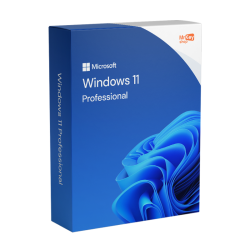
No - and any site telling you otherwise is trying to upsell you. Windows 11 Home vs Pro gaming performance is identical because both editions run the same kernel, the same scheduler, the same graphics drivers and the same DirectX 12 stack. Auto HDR, Game Mode and every Xbox app feature work the same on both.
Frame rates, loading times and input latency do not change with the edition on the box. The 2 TB RAM ceiling on Pro is irrelevant for gaming, since Home already supports 128 GB - several times more than any gaming rig needs in 2026.
The only gaming-adjacent reason to pick Pro is if you also stream, test mods in a virtual machine or host a remote setup. If the PC exists to play games, buy Windows 11 Home and put the savings toward your hardware.
Watch out: Some marketplace listings label ordinary Home keys as "gaming editions" at inflated prices. There is no gaming edition of Windows 11 - only Home, Pro and Enterprise. If a listing invents an edition, shop elsewhere. Our guide on whether cheap Windows keys are legit covers the other red flags.
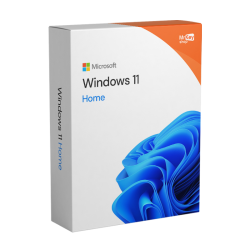
Who should buy Windows 11 Home
Windows 11 Home is the right call for the clear majority of personal machines. Pick Home if you recognise yourself here:
- Gamers - identical performance, full DirectX 12 and Xbox ecosystem support.
- Everyday users - browsing, email, streaming, banking and video calls need nothing from Pro.
- Students - Word, Excel, research and note-taking all run the same. Pair it with a license from our Office keys range and the whole setup stays cheap.
- Family PCs - parental controls, Defender antivirus and Windows Hello sign-in are all included in Home.
Home still gets every security patch and feature update on the same day as Pro. You are not buying a second-class product - you are skipping features built for offices.
Who should buy Windows 11 Pro
Pro earns its price when your PC is a work tool as much as a personal one. It is the better buy if any of these apply:
- Freelancers & small business owners - BitLocker protects client data on a laptop that travels, and kiosk mode can lock a front-desk PC to one app.
- Remote & hybrid workers - domain join, Microsoft Entra ID join and Windows Hello for Business are often required just to get onto a company network.
- Developers & tinkerers - Hyper-V and Windows Sandbox give you safe, disposable test environments without third-party software.
- Anyone who remotes into their PC - only Pro can act as a Remote Desktop host.
- Workstation builders - the 2 TB RAM ceiling matters once you pass Home's 128 GB limit.
If you need even more - VDI rights and enterprise-grade management on top of everything in Pro - Windows 11 Enterprise exists at €79.99, but it is aimed at IT departments rather than individuals.
Price difference and how to pay less
Bought directly from Microsoft, the jump from Home to Pro costs considerably more than most people expect - which is exactly why "is Windows 11 Pro worth it" gets asked so often. Through a licensed reseller the maths gets friendlier.
At KeyKiwi, Windows 11 Home is €49.99 and Windows 11 Pro is €58.99 - a gap of just €9. At that spread, the calculation changes: if there is even one Pro feature you might use in the next few years, the upgrade costs less than a takeaway dinner.
Every key in our Windows keys range is a genuine retail-type digital license sourced from authorized EU channels. Delivery is by email within seconds, and each purchase carries an activation guarantee: if the key does not activate, we fix it or refund you in full. If you have ever wondered how legitimate resellers can undercut the Microsoft Store, our article on whether cheap Windows keys are legit explains the supply chain.
Still on Windows 10? With Windows 10 end of support now behind us, moving to Windows 11 is the sensible path - though Windows 10 Pro keys remain available at €38.99 for older hardware that cannot meet the TPM 2.0 requirement.
Can you upgrade Windows 11 Home to Pro later?
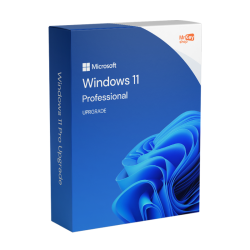
Yes, and it is easier than most people think. You do not reinstall Windows, you do not lose files, and you do not need any special upgrade SKU - a standard Windows 11 Pro product key does the job:
- Buy a Windows 11 Pro key (see below).
- Open Settings → System → Activation.
- Click Change product key and enter the Pro key.
- Windows verifies the key, switches the edition and asks for a restart. Your apps, files and settings stay put.
After the restart, BitLocker management, Hyper-V, Remote Desktop hosting and Group Policy all appear. The Pro license then becomes a digital license tied to your device, so future reinstalls reactivate automatically. For the full walkthrough of every activation method - including the command-line route - see our guide on how to activate Windows 11 with a product key.
Frequently asked questions
Is Windows 11 Pro worth it for home users?
For most home users, no. Windows 11 Home covers browsing, gaming, streaming, school and everyday office work. Pro is worth it if you need BitLocker management, Remote Desktop hosting, Hyper-V virtual machines or Group Policy control. At KeyKiwi the gap is small - Home is 49.99 euros and Pro is 58.99 euros - so power users can step up cheaply.
Does Windows 11 Pro run games faster than Home?
No. Both editions share the same kernel, drivers, DirectX 12 support and gaming features, so frame rates are identical. Buying Pro for gaming performance alone is wasted money - choose it only if you also want features like Hyper-V, Remote Desktop hosting or BitLocker management.
Can I upgrade from Windows 11 Home to Pro without reinstalling?
Yes. Buy a Windows 11 Pro product key, open Settings, go to System, then Activation, choose Change product key and enter the Pro key. Windows switches editions in place, keeping your files, apps and settings. The whole process usually takes a few minutes plus a restart.
What is the RAM limit difference between Windows 11 Home and Pro?
Windows 11 Home supports up to 128 GB of RAM, while Windows 11 Pro supports up to 2 TB. In practice 128 GB is far more than a typical desktop or laptop will ever use, so the limit only matters for heavy workstation builds running large virtual machines or scientific workloads.
Do Windows 11 Home and Pro have the same system requirements?
Yes. Both editions require TPM 2.0, Secure Boot, at least 4 GB of RAM and 64 GB of storage. If your PC can run Windows 11 Home, it can run Windows 11 Pro too - the difference is purely in software features, not hardware demands.
Written by the KeyKiwi team - we've been in digital software licensing for 18+ years. Every key we sell is sourced from authorized channels and covered by our activation guarantee. Questions? Talk to a human.