Office 2021 Support Ended in October 2026 - Here's What To Do

Office 2021 end of support arrived on 13 October 2026, and that date is now behind us. Microsoft has confirmed there is no extension and no extended security updates programme for Office 2021 of any kind. Word, Excel, Outlook and PowerPoint still open and still behave exactly as they did last month - nothing was remotely switched off - but from that date Microsoft issues no security patches, no bug fixes and no technical support for the suite.
Hold onto that distinction, because it shapes every decision below. Office 2021 has not been disabled, it has been left unmaintained. Your perpetual licence does not expire and your files are untouched. What stopped is the stream of fixes behind the software. This guide covers what changed in practice, how much real risk you are carrying, and the four honest paths open to you - including doing nothing for a while.
What happened on 13 October 2026 and what it means in practice
Office 2021 was sold as a perpetual licence with a fixed five-year support window. That window closed on 13 October 2026. The same date applied across the family: Office 2021, Office LTSC 2021 and Office LTSC 2021 for Mac all reached the end of their lifecycle together.
Microsoft did not blink on this one. In the weeks before the deadline a lot of people assumed Office 2021 would get the same treatment as Windows 10, which did receive a consumer safety net. It did not. There is no paid ESU tier for Office 2021, no free enrolment route and no grace period. 13 October 2026 was simply the last day patches were produced.
In practical terms, three things changed on that day:
- No more security updates. Any vulnerability discovered in Word, Excel, PowerPoint, Outlook, Access or Publisher from that date onward stays unpatched in Office 2021 forever.
- No more bug fixes. Crashes, rendering faults and compatibility quirks that surface now will not be repaired.
- No more technical support. Microsoft support will not troubleshoot an Office 2021 problem for you, paid or otherwise.
Everything else carried on as normal. That is why so many people did not notice the date pass at all - and why it is worth understanding the actual risk rather than reacting to a headline.
What still works vs what stopped
This is the table to screenshot. The left column is what people worry about losing; the right column is what actually happened.
| Part of your Office 2021 setup | Status after 13 October 2026 | Notes |
|---|---|---|
| Word, Excel, PowerPoint, Outlook launching and running | ✓ Unchanged | Works indefinitely. Nothing is remotely disabled. |
| Your product key and activation | ✓ Unchanged | A perpetual licence does not expire at end of support. |
| Your documents (.docx, .xlsx, .pptx, .pst) | ✓ Unchanged | Files live in your folders, not inside the program. |
| Reinstalling on the same PC | ✓ Still possible | Your key still activates a fresh install. |
| Macros, templates and add-ins you already use | ✓ Unchanged | Third-party add-in vendors may drop support separately. |
| Security updates for newly found vulnerabilities | ✗ Stopped | The big one. Risk grows the longer you wait. |
| Bug fixes and stability patches | ✗ Stopped | Existing bugs stay as they are. |
| Microsoft technical support | ✗ Stopped | No troubleshooting for Office 2021 issues. |
| New features | ✗ Stopped | Perpetual Office never received these anyway. |
| Connecting Outlook 2021 to Microsoft 365 business mail | Not a supported configuration | It may keep working, but Microsoft makes no commitment. |
One line in that table deserves a second look. If you use Outlook 2021 against a Microsoft 365 or Exchange Online mailbox, you are now running a combination Microsoft does not support. It will very likely keep working for a while. It is just no longer a configuration anyone will help you fix.
How risky is it really to keep using Office 2021?
Honest answer: the risk on 1 November 2026 is small, and it compounds. Anyone telling you your spreadsheets are in danger this week is selling something. Anyone telling you it does not matter at all is also wrong, just more slowly.
Here is the mechanism. Office is a document-opening machine, and documents are the most common delivery route for malicious code on a desktop. A crafted Word or Excel file that exploits a parsing flaw is a well-worn attack pattern. While Office was supported, those flaws got patched within weeks of discovery. Now they do not get patched at all. So the gap between "flaw found" and "flaw fixed on your PC" went from weeks to permanent.
That does not mean anything happens today. It means your exposure is a slope, not a cliff:
- Month one to three. Barely different from before. Few new Office vulnerabilities will have been published and weaponised this fast.
- Six to twelve months. A handful of known, unpatched issues will exist in Office 2021. Attack kits start including them precisely because they know millions of unpatched installs are out there.
- Year two onward. This is where unsupported software earns its bad reputation. Office 2019, which went out of support in October 2025, is already in that territory.
Your personal risk depends mostly on what you do with the PC. Judge yourself honestly against this:
Lower risk: a machine that is rarely online, opens only files you created yourself, has no email client configured, and is protected by current antivirus and an up-to-date Windows install. A spreadsheet PC in a workshop, for instance.
Higher risk: a machine where you open email attachments from clients or strangers, download documents from the web, handle invoices, contracts, payroll, patient or customer data, or where a compromise would reach a company network. If that is you, treat this as a job for this quarter rather than next year.
Watch out: Out-of-support software is a compliance problem before it is a security problem. If you process customer or client data under GDPR, run a regulated business, or are subject to a cyber insurance policy, running an unsupported office suite can be treated as a failure to apply reasonable technical measures - entirely separate from whether anything actually goes wrong.
Your four options compared
There are exactly four realistic responses. Three of them cost money and one does not, and we are going to be straight about all four.
Option 1: Stay on Office 2021 for now
Perfectly reasonable as a deliberate short-term choice. It costs nothing, changes nothing and buys you time to decide. It is a bad choice as a permanent plan, because the risk above only moves one way. If you pick this, pair it with current antivirus, prompt Windows updates, and a hard rule about not opening attachments you were not expecting.
Option 2: Office 2024 - the one-time purchase
This is the natural successor and the right answer for most people who liked owning their software outright. You pay once, you own the licence, and it is supported until around October 2029, which buys you roughly three more years of patches. The apps are familiar: if you can use Office 2021, you can use Office 2024 without a single tutorial. You get the same offline-first behaviour and no recurring bill.
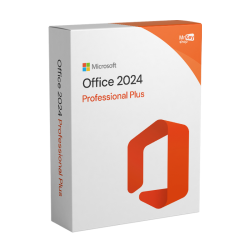
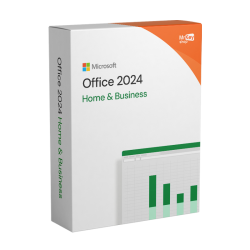
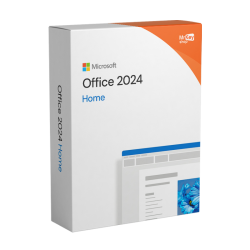
Three editions matter here. Office 2024 Home at €78.99 covers Word, Excel, PowerPoint and OneNote for personal and household use. Office 2024 Home & Business at €88.99 adds Outlook and commercial-use rights, which is what most freelancers and small businesses need. Office 2024 Professional Plus at €169.99 adds Access and Publisher on top, for people with database and layout work.
Option 3: Microsoft 365 - always current, never out of support
Microsoft 365 sidesteps this whole article. It is a subscription, so the apps update continuously and there is no end-of-support date to plan around - this problem simply never recurs. You also get cloud storage, mobile and tablet apps, and the newest features as they ship rather than every few years.
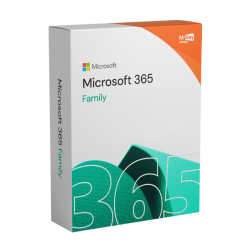
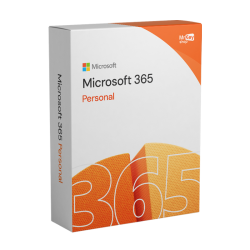
Microsoft 365 Personal is €41.99 for a year. Microsoft 365 Family is €136.99 for a year and covers up to six people, which works out at about €22.83 per person per year - comfortably the best value in the range if there is more than one of you. The trade-off is simple: you are renting, and if you stop paying the apps drop into a read-only mode.
Option 4: Free alternatives like LibreOffice
We sell Microsoft licences, and we are still going to tell you this honestly: free office suites are genuinely good now, and for some people they are the correct answer. LibreOffice is actively developed, free, runs offline on Windows, Mac and Linux, and opens and saves .docx, .xlsx and .pptx files. Web-based suites like Google Docs and the free tier of Office on the web are also real options if your work lives in a browser.
Where free suites fall down is fidelity and depth. Complex Word documents with heavy formatting, Excel workbooks built on advanced formulas, pivot tables, Power Query or VBA macros, and anything you exchange daily with Microsoft Office users will give you layout drift and conversion headaches. There is also no Outlook equivalent that behaves like Outlook. If your documents are straightforward and mostly yours, LibreOffice costs you nothing and is maintained. If you live in Excel or trade files with clients all day, the time you lose fighting compatibility will cost more than a licence.
What each path actually costs
Prices below are ours, and the three-year column is what makes the perpetual-versus-subscription argument concrete. We have used three years because that is roughly how long Office 2024 stays supported from today.
| Path | Price | Cost over 3 years | Security updates? | Best for |
|---|---|---|---|---|
| Stay on Office 2021 | €0 | €0 | ✗ None | Offline or low-risk PCs, buying time |
| LibreOffice | Free | Free | ✓ Yes | Simple documents, tight budgets |
| Office 2024 Home | €78.99 once | €78.99 | ✓ To around Oct 2029 | Personal and household use |
| Office 2024 Home & Business | €88.99 once | €88.99 | ✓ To around Oct 2029 | Freelancers who need Outlook |
| Office 2024 Professional Plus | €169.99 once | €169.99 | ✓ To around Oct 2029 | Power users needing Access and Publisher |
| Microsoft 365 Personal | €41.99 / year | €125.97 | ✓ Always current | One person, cloud and mobile use |
| Microsoft 365 Family | €136.99 / year | €410.97 | ✓ Always current | Up to 6 people, about €22.83 each per year |
| Office 2021 Professional Plus | €109.99 once | €109.99 | ✗ None | Legacy or offline needs only - see below |
Read that table once and the pattern is obvious. For a single person on one PC, Office 2024 Home at €78.99 undercuts three years of Microsoft 365 Personal. For a household, Microsoft 365 Family is the only option that covers six people and stays permanently patched. For a one-off purchase with Outlook included, Home & Business is the sweet spot. We broke all of this down feature by feature in our Office 2024 vs 2021 vs Microsoft 365 comparison.
Save 10%: Use coupon code KIWI10 at checkout for 10% off any licence in our Office keys range, including Office 2024 and Microsoft 365. Every key is a genuine EU-sourced licence, delivered to your email in seconds with an invoice and an activation guarantee.
Why we still sell Office 2021 keys - and when you should buy one
We should be upfront about something. KeyKiwi still sells Office 2021 Professional Plus at €109.99, and we have no plans to pull it, because some people genuinely want it - an air-gapped or offline machine, a specific add-in or macro that is only certified against the 2021 build, or a fleet standardised on it. Those are valid reasons and we will happily sell you the key. But if what you want is continued security updates, Office 2021 cannot give you that any more, and we would rather point you at Office 2024 or Microsoft 365 than take your money for a suite that will never be patched again.
How to move your files and settings across
This is the part people put off, and it is far less work than it looks. Your documents are not stored inside Office - they are in your own folders - so an upgrade does not touch them. Work through this in order:
- Back up first. Copy your Documents folder, Desktop and any project folders to an external drive or cloud storage. Non-negotiable, even though nothing should go wrong.
- Note your Outlook accounts. Write down each email address, the account type and the incoming and outgoing server names if it is not a Microsoft or Gmail account. Find your .pst or .ost data files under Documents → Outlook Files and back those up too.
- Save your templates and signatures. Custom Word templates sit in your user profile under Templates, and Outlook signatures under Microsoft → Signatures. Copy both folders somewhere safe - these are the items people most often forget and most miss afterwards.
- Export your dictionary and AutoCorrect entries if you have built up a long list. The custom dictionary is a plain text file you can copy straight across.
- Uninstall Office 2021. Settings → Apps → Installed apps, find Microsoft Office 2021, choose Uninstall, then restart the PC. Running two Office versions side by side is possible but causes file-association fights, so a clean removal is better.
- Install the new suite. For Office 2024, sign in at the Microsoft setup page, enter the key we email you, and download the installer. For Microsoft 365, redeem the key against your Microsoft account and install from there.
- Put your settings back. Add your email accounts in Outlook, let it sync or point it at your old .pst file, then drop your templates and signatures into the matching folders in the new install.
- Open a few real files. Pick your most complex spreadsheet and your most heavily formatted document and check them. Office 2024 opens Office 2021 files natively, so this is a formality - but check anyway.
Budget an hour, less if your mail is a straightforward Outlook.com or Gmail account. If you hit a wall, our activation guides cover the key-entry steps in detail and our support team answers real emails.
One last thing worth flagging if this article found you via the Windows 10 deadline rather than the Office one: the two lifecycles are separate and the rules are different. Windows 10 lost mainstream support in October 2025 but does have a consumer Extended Security Updates route that now runs to October 2027. Office 2021 has nothing equivalent. We cover the Windows side in Windows 10 vs Windows 11 in 2026 and in our Windows 10 end of support guide, and if you are picking an edition while you are at it, Windows 11 Home vs Pro settles that question. Keys for both sit in our Windows keys range.
Frequently asked questions
Is Office 2021 still supported in 2026?
No. Office 2021 reached end of support on 13 October 2026, and that date has passed. Microsoft confirmed there is no extension and no extended security updates programme for it. The apps still open and still work, but no security patches, bug fixes or technical support are issued for problems found after that date. The same deadline applied to Office LTSC 2021 and Office LTSC 2021 for Mac.
Will Office 2021 stop working now that support has ended?
No. Nothing is remotely disabled and your licence does not expire. Word, Excel, PowerPoint and Outlook keep launching, your product key stays valid, and you can still reinstall the suite. End of support means Microsoft stops maintaining the software, not that it switches it off.
Are there extended security updates for Office 2021?
No. Unlike Windows 10, which has a consumer Extended Security Updates programme running through 12 October 2027, Office 2021 has no paid or free ESU option of any kind. Microsoft has been clear that 13 October 2026 was the final date for both consumer and LTSC versions, so the only way to keep getting Office security updates is to move to Office 2024 or Microsoft 365.
Should I buy Office 2024 or Microsoft 365?
Buy Office 2024 if you want a one-time payment, use one PC and are happy with the apps as they are today - it is supported until around October 2029. Choose Microsoft 365 if you want the apps to stay permanently current, need cloud storage, or want to cover several people. Office 2024 Home is 78.99 euros once at KeyKiwi, while Microsoft 365 Personal is 41.99 euros a year.
Can I install Office 2024 over Office 2021, and will I lose my files?
Your documents are never touched by an Office upgrade - they live in your folders or OneDrive, not inside the program. The cleanest route is to uninstall Office 2021 first, restart, then install Office 2024 or Microsoft 365 and sign in or enter your new key. Your docx, xlsx and pptx files open normally afterwards, and Outlook rebuilds its profile from the same account settings.
Written by the KeyKiwi team - we've been in digital software licensing for 18+ years. Every key we sell is sourced from authorized channels and covered by our activation guarantee. Questions? Talk to a human.